
Art on the Go: How to Create on the Move
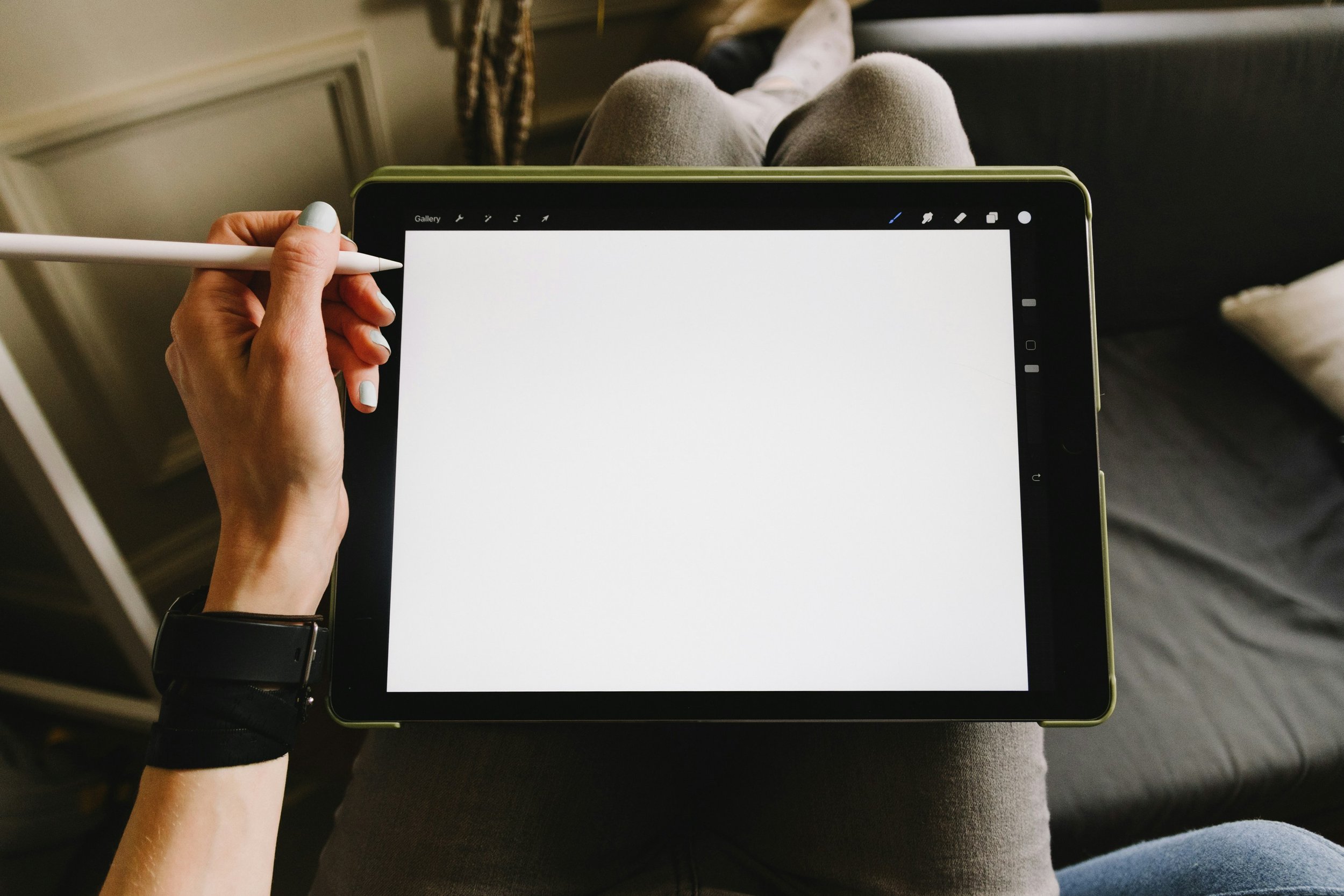
Creating art no longer requires being anchored to a studio. With advancements in technology, it's easier than ever to carry your tools with you wherever you go. As a digital artist, I rely heavily on my iPad Pro 12.9 inch M2 paired with the Apple Pencil 2 for on-the-go creation. This setup, along with a matte screen protector, gives me the tactile feedback of traditional paper and the versatility of a digital platform.
In this post, I’ll guide you through how to make art on the go, what tools I use, and suggest some free and paid resources that can help enhance your mobile creativity. P.S. I get no affiliation payments, this is just my advice and what I have used in the past and am currently using.
Tools for On-the-Go Art Creation
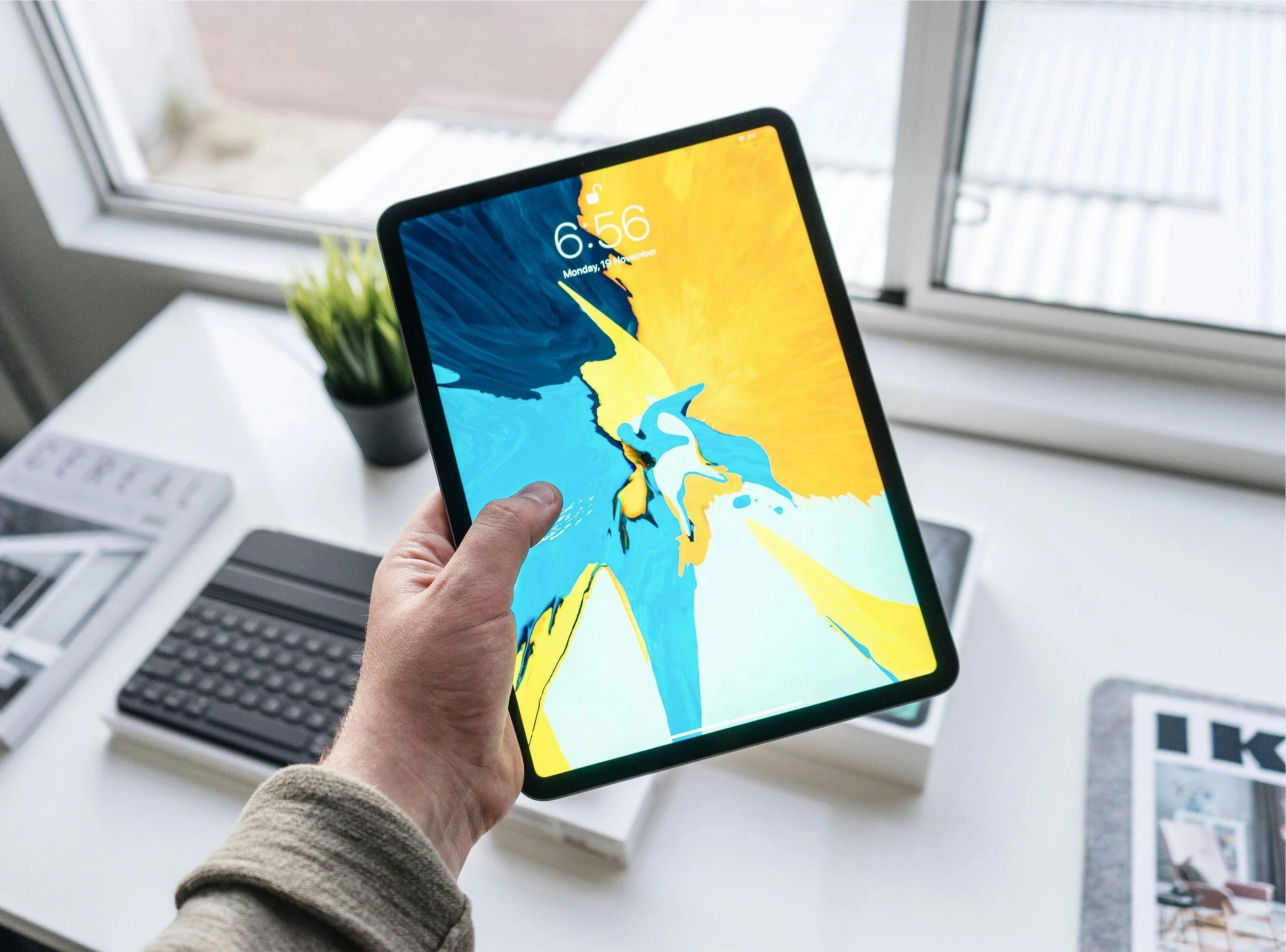
iPad Pro 12.9 inch M2 The iPad Pro M2 is my go-to for creating on the move. Its high-resolution screen and powerful processor make it ideal for demanding apps like Procreate and Adobe Fresco, offering a seamless experience for sketching, painting, and editing. Its portability makes it the perfect companion when I'm away from my desktop setup.
Apple Pencil (2nd Generation) This pencil is key to unlocking the full potential of digital drawing on the iPad. With its pressure sensitivity and fluid response, it mimics the feeling of traditional drawing tools.
Buy the Apple Pencil 2 or the new Pro Pencil
ProCase Matte Screen Protector (or Paperlike) To achieve a more “paper-like” texture, I use a matte screen protector on my iPad. This gives a realistic drawing experience that reduces glare and fingerprints, providing excellent control when using the Apple Pencil. Just make sure you get the right one for your ipad.
Essential Apps for Mobile Creation
For creating art on the go, you’ll need apps that are versatile, user-friendly, and well-suited for the iPad Pro’s capabilities. Here are some of the best:
1. Procreate (Paid)
Procreate is the go-to app for many digital artists due to its incredible range of brushes, tools, and customizability. It allows for high-resolution canvas creation and comes packed with features like multi-touch gestures, layer management, and time-lapse recording.
Cost: $12.99 (one-time purchase)
Platform: iOS
2. Adobe Fresco (Free + Premium options)
For those familiar with Adobe products, Fresco is a fantastic option. It combines the world of vector and raster graphics into one app, offering advanced brush settings, live brushes for watercolors and oils, and seamless integration with Adobe Creative Cloud.
Cost: Free, with a premium subscription for additional features
Platform: iOS, Windows
3. Affinity Designer (Paid)
Affinity Designer is an affordable alternative to Adobe Illustrator and works well for vector illustrations. The iPad version offers almost all the features of the desktop app, making it a powerful tool for designers and illustrators.
Cost: $21.99 (one-time purchase)
Platform: iOS
4. Autodesk SketchBook (Free)
SketchBook offers a simplified drawing experience with a clean interface, focusing on ease of use. It’s free to use and offers enough flexibility for both beginners and more experienced artists.
Cost: Free
Platform: iOS, Android
Creating on the Go: Workflow Tips
Start with Sketching: Whether you’re on the train, in a café, or sitting in a park, use the Procreate QuickShape feature or Fresco’s live brushes to create rough sketches. These can be refined later when you have more time.
Work in Layers: Apps like Procreate and Fresco make layer management easy. Start by sketching your base idea, then add refinement in separate layers. This helps avoid mistakes and makes editing simpler.
Use Reference Images: Having access to reference images on the go is crucial. Apps like Pinterest can be a treasure trove for creative ideas, and Unsplash or Pexels offer royalty-free images to work with.
Free & Paid Resources for On-the-Go Artists
Free Resources:
Unsplash (Free) A great resource for high-quality, royalty-free images. Use it to pull up references for your artwork.
Pexels (Free) Similar to Unsplash, Pexels offers free photos and videos that you can use as references or backgrounds in your designs.
Pixabay (Free) Another excellent platform for free images, illustrations, and vectors, perfect for use in digital art and design projects.
Paid Resources:
Creative Market (Paid) Creative Market is a hub for premium design resources, including fonts, templates, and brushes that can take your art to the next level.
Conclusion: Art, Anytime, Anywhere
With tools like the iPad Pro and Apple Pencil, you can create professional-quality art no matter where you are. From sketching concepts to finalizing prints, the ability to carry your studio in your bag opens up limitless creative possibilities. Combine that with resources like Procreate, Unsplash, and Creative Market, and you’re set for success—whether at home or on the go.
Keep your creative momentum going, no matter where life takes you!
